
Once you have collected a document (Post or Dossier) into an Insight, you can immediately transform it into a Signal. This creates a specific intelligence point that is linked to the original document.
In case you don't know how to collect documents, we recommend reading the following articles:
Accessing the Create Option
-
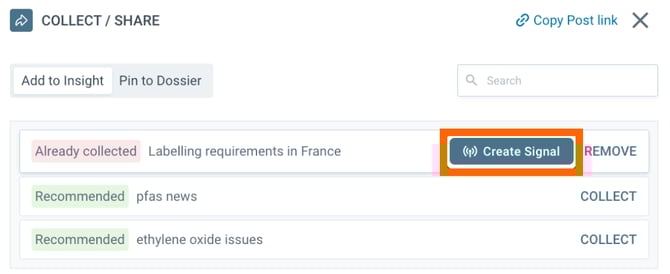
Open Collection Dialog: Open the "Collect / Share" dialog for the document you wish to process. (You can do this from the search results or the post detail view).
-
Locate the Button: In the list of Insights where the document is collected, you will see a Create Signal button next to the Insight name.
-
Click: Click the button to open the creation form.
Reviewing the Signal Form
The system streamlines the process by auto-filling the data:
-
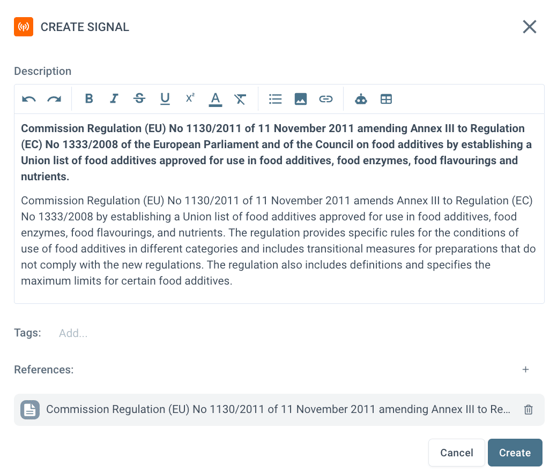
Description: The document title and summary (if available) are automatically pasted into the description field.
-
References: The original document is automatically added to the "References" list so the link to the source is never lost.
-
Editing: You are free to modify the text, add tags, or attach extra files.
Checking for Duplicates (Similar Signals)
Before you save, the system performs a smart check to prevent data clutter.
-
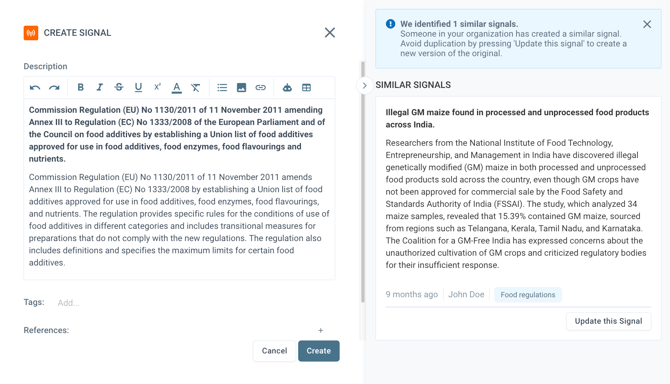
Notification: If a colleague has already created a signal with similar content, a "Similar Signals" panel will appear on the right side.
-
Decision:
-
Update: You can click Update this Signal to add your information to the existing entry, avoiding duplication.
-
Create New: If you prefer to keep them separate, you can ignore the suggestion and click Create to generate a new, standalone signal.
-
Note: You can find more information about creating a signal in the article How to create a Signal from scratch.
Discover our new onboarding platform full of video guides - SGS Academy!