
While Signals are often created from existing documents or AI answers, you can also create them from scratch to capture original thoughts, internal notes, or external observations.
Accessing the Signal Workspace
To create a new signal, you must first navigate to the specific topic (Insight) where it belongs.
-
Navigate to My Space: Click the My Space tab in the top navigation bar.
-
Open Insights: Select INSIGHTS from the left-hand menu.
-
Select a Topic: Click on the specific Insight name where you want to add the signal.
-
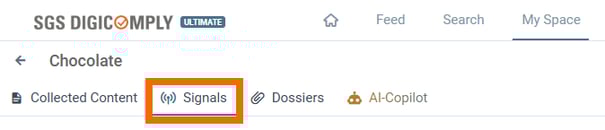
Go to Signals Tab: Once inside the Insight, click the Signals tab in the top toolbar.
-
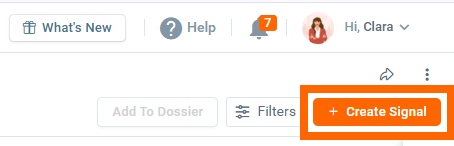
Initiate: Click the orange + Create Signal button located in the top-right corner.

Filling the Signal Form
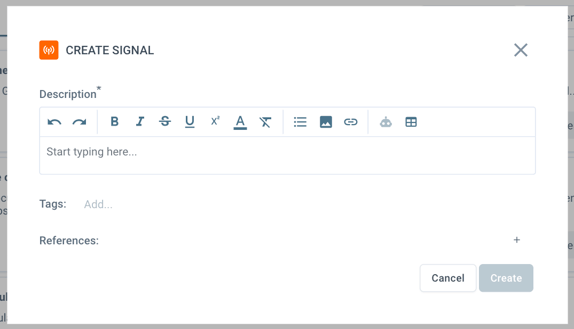
A dialog box will appear allowing you to structure your data.
-
Description: Enter your note or finding. You can use the editor toolbar to format text (bold, lists, etc.).
-
Tags: Add keywords to make the signal searchable later.
-
References: You can attach supporting evidence such as Posts, Dossiers, or Web Links.
-
Tip: Attached content helps the AI Copilot provide better answers when querying this Insight.
-
Enriching with Custom Properties
If your organization has configured specific metadata fields, you can categorize your signal further.
-
Fields: Look for options like Market, Priority, or Date.
-
Benefit: These properties allow you to filter and sort your intelligence later (e.g., "Show me all High Priority signals for France").
Finalizing
Once satisfied with the information, click Create. The new Signal will immediately appear in the Insight's list and be available for reporting.
Discover our new onboarding platform full of video guides - SGS Academy!