
NOTE: This view is accessible only to the PRO team workspace.
Enabling the Simplified View
If you prefer a cleaner interface that focuses on core collaboration tools, you can switch to the Simplified View.
-
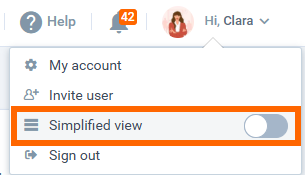
Open your Account Menu by clicking on your name/avatar in the top right-hand corner.
-
Locate the toggle switch labeled Simplified view.
-
Click the toggle to turn it ON.
-
The page will reload, presenting a streamlined version of the application.
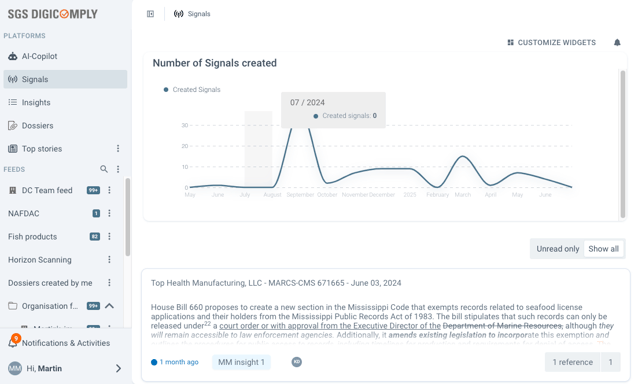
The page reloads, and you will see a different look of our application that includes only the basic parts of the system.
Navigation & Key Features
Once enabled, the interface changes to focus on essential modules. The left-side navigation pane provides quick access to:
-
AI-Copilot: Your research assistant.
-
Signals: Monitoring triggers.
-
Insights: Collaborative workspaces.
-
Dossiers: Document management.
-
Feeds: Your monitoring streams.
-
Notifications & User Preferences.
TIP: You can return to the standard view just by switching off the Simplified view toggle under the account menu that can be found at the bottom left-hand corner.
AI-Copilot
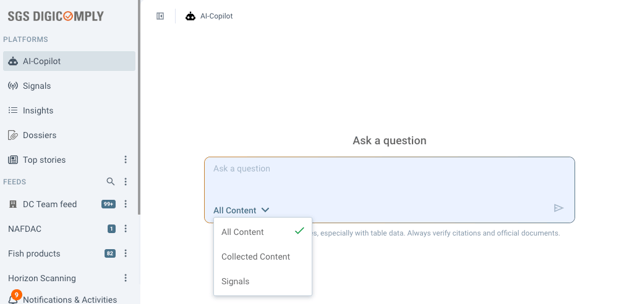
In the AI-Copilot section, you can ask any question related to the documents collected in the Insights you are subscribed to. You can also select a scope where to ask:
- All content - search in all collected Posts and Signals
- Collected content - search only in collected Posts
- Signals - search only in Signals
Signals
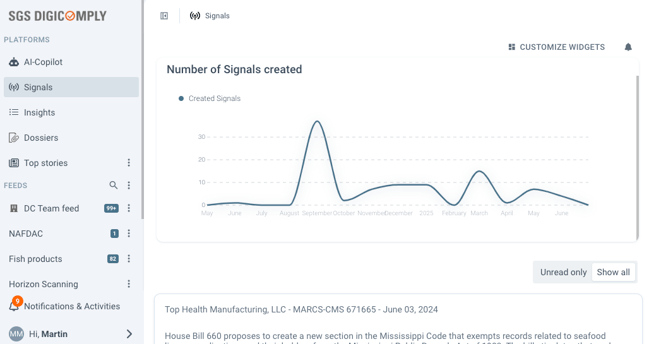
This is the landing page of the Insight module view. Here you can find all the created Signals, with the most recent ones at the top. You can choose to view only unread items or both unread and read items together.
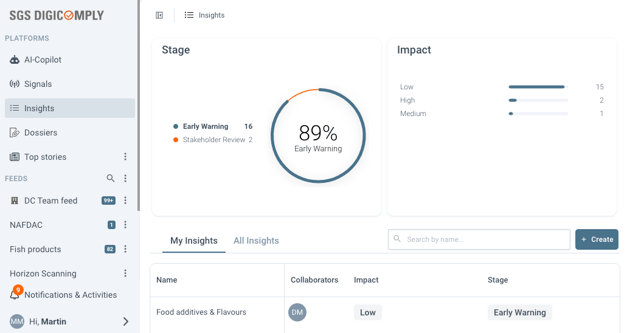
Insights
In this section, you can manage your Insights, subscribe to the new Insights, or unsubscribe from the ones that you don't want to follow anymore.
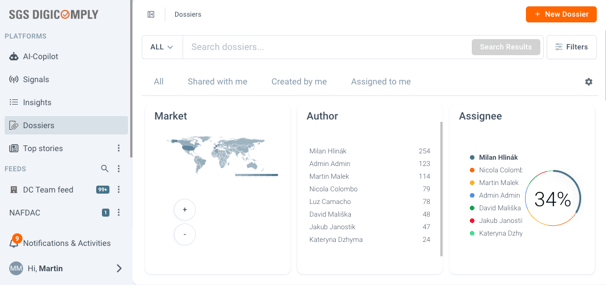
Dossiers
The Dossiers section provides all the key tools you need to manage your dossiers effectively.
Top stories & Feeds
The left side panel also includes feeds created by you or your colleagues. You can sort them, manage notifications, and preview their content just like in the standard view of our application.
Tips
To enhance readability, click the button at the top next to the left-side panel to collapse or expand it.
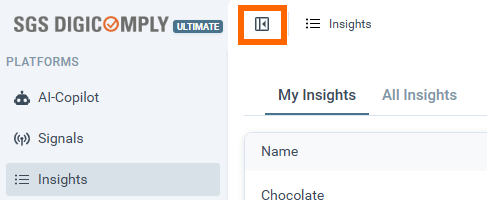
Breadcrumbs are provided to help you stay oriented and always know where you are.

Discover our new onboarding platform full of video guides - SGS Academy!