
This feature is available only to users who have editor rights on the specific Insights.
An Insight Bulletin is a newsletter that automatically shares the latest content from an Insight with its subscribers. You can customize the schedule and layout to ensure your team stays informed without manual effort.
Accessing Bulletin Settings
-
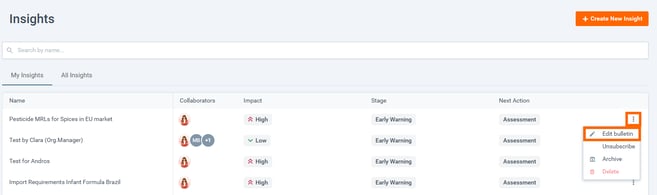
Open the Insight: Navigate to the specific Insight you want to manage.
-
Open Menu: Locate the 'Three dots' button.
-
Select Option: Click Edit bulletin from the dropdown menu.
Configuring the Bulletin
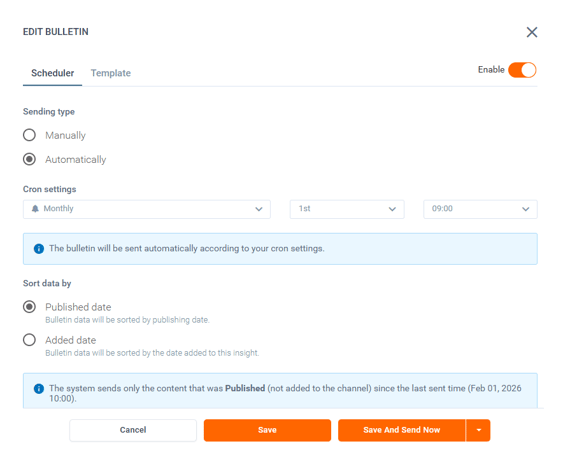
Scheduler:
-
Sending Type:
-
Manually (send only when you click a button)
-
Automatically (send on a recurring schedule like Daily, Weekly, or Monthly).
-
-
Sort Data By: Decide if content should be ordered by
-
Published date (when the source released it)
-
Added date (when it was added to the Insight).
-
-
Enable Toggle: Use the toggle in the top-right corner to turn the bulletin ON or OFF globally.
Template:
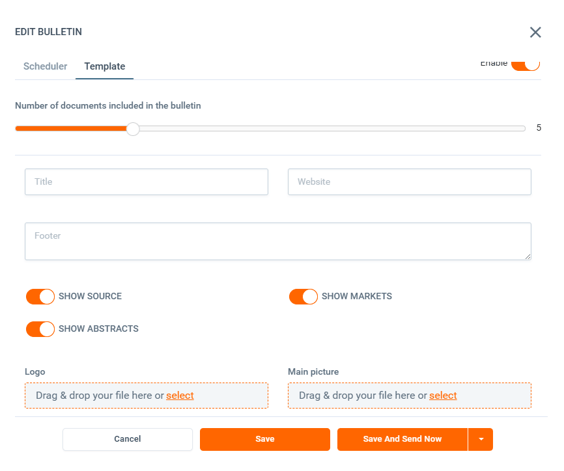
Customize the look of your email.
-
You can define:
-
the Title
-
add a Custom Image
-
set a Footer
-
determine the Number of items displayed.
-
-
Preview: The system shows a basic preview of how the email will look to recipients.
Saving & Sending
Once configured, you have three options to finalize your work:
-
Save: Saves your settings and closes the dialog. If "Automatic" is selected, the system will start the schedule.
-
Save and Send Now: Saves changes and triggers an immediate email blast to all subscribers.
-
Send to specific user: (Testing Mode) Allows you to send a test copy of the bulletin to a specific email address to verify the layout before going live.
Note: The system will skip sending a bulletin if no new content has been added to the Insight since the last email was sent.

You may not receive a bulletin during the specified period or when sending it manually. This usually happens if no new content has been added to the Insight since the last bulletin was sent.
Discover our new onboarding platform full of video guides - SGS Academy!