
The Insight Audience can be managed only by users with the EDITOR role for that Insight.
Accessing the Share Menu
To start managing access:
-
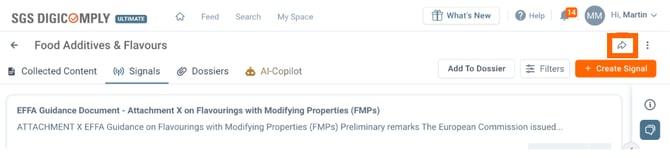
Open the specific Insight you wish to manage.
-
Locate the toolbar in the top-right corner.
-
Click the Share Icon (curved arrow).
Managing Users
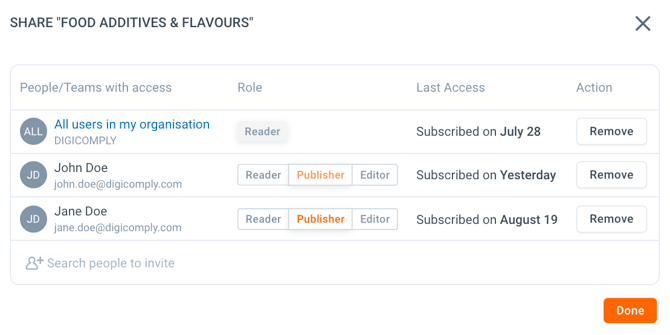
The "Share" dialog allows you to invite new colleagues or revoke access for existing ones.
-
To Invite Users: Click into the field labeled "Search people to invite". Type the name of a user (or an entire Team) and select them from the list to grant access.
-
To Remove Users: Locate the user in the access list and click the Remove button on the far right. Access is revoked immediately.
Roles & Privileges
When inviting a user, or by modifying an existing user in the list, you must assign one of three roles. Each role grants a specific level of control over the Insight.
- READER - Can access the Insight and read all collected content. Cannot make changes.
- PUBLISHER - Can read content + Manage Content. This includes adding or removing Posts, Dossiers, and Signals.
- EDITOR - The highest permission level. Includes all Publisher rights, plus the ability to:
- Edit Insight details (Name, Description, Properties)
- Manage the Audience (Invite/Remove users)
- Archive the Insight
Changing a User's Role
To change a colleague's permission level (e.g., promoting a Reader to a Publisher):
- Find their name in the list.
- Click the desired role button (Reader, Publisher, or Editor) next to their name.
- The change is applied immediately.
Discover our new onboarding platform full of video guides - SGS Academy!