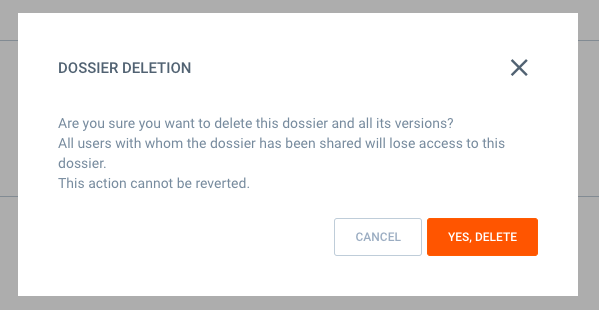
⚠️Deletion is permanent: Deleting a dossier is an irreversible action. Once confirmed, the dossier and all its version history will be removed for all users. Please proceed with caution.
Who can delete a Dossier?
Before attempting to delete a file, you must ensure you have the correct permissions. The requirements differ based on the type of dossier you are managing:
-
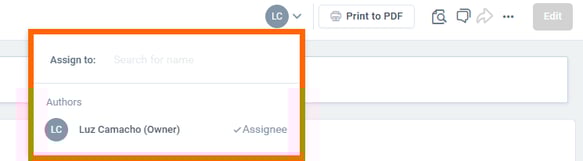
Standard & Requirement Dossiers: Deletion is restricted to the Assignee (the Owner). Even if you have editing rights, you cannot delete the dossier unless you are currently designated as the Assignee.
-
Collaborative Dossiers: Deletion is open to Editors. In this workflow, the "Assignee" role does not dictate deletion rights. If you are listed as an Editor on the collaborative dossier, you have the permission to delete it.
Step-by-Step Deletion Guide
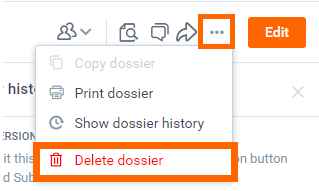
- Open the Menu: Navigate to the dossier you wish to remove. In the top-right corner of the toolbar, click the three dots (...) to open the Actions Menu.
- Select Delete: Click on the "Delete dossier" option at the bottom of the dropdown list.
- Confirm the Action: A pop-up window will appear asking for final confirmation. This prompt ensures you do not accidentally delete shared work.
-
-
Click YES, DELETE to permanently remove the dossier.
-
Click CANCEL if you have changed your mind.
-