
You can easily compile multiple Signals into a formal report (Dossier) to share with stakeholders. This feature allows you to turn a list of individual data points into a cohesive document.
Locating Your Signals
You can initiate a report from two primary locations:
-
Organization Space: To create a report from a broad range of signals across your company feed.
-
Insight Detail: To create a report specifically from signals collected within a certain topic.
In either view, filter the list to show the specific signals you want, then click the Add to Dossier button located above the list on the right.
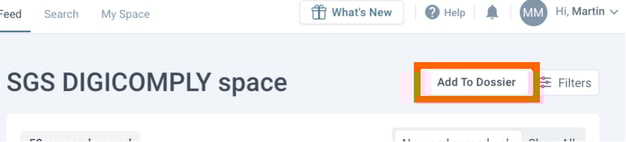
Insight detail - Signals tab:

Choosing the Destination
A dialog will appear giving you two choices for where these signals should go:
-
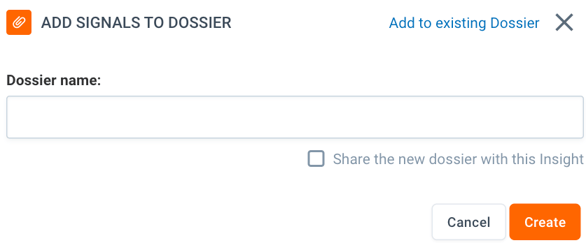
Create New Dossier: Generates a brand new document. You simply enter a name (e.g., "Food Additives Report, July 2025") and click Create.
-
Option: You can check "Share the new dossier with this Insight" to automatically link it back to the topic.
-
-
Add to Existing Dossier: Appends the signals to a dossier you have already started. Click Select next to the dossier name.
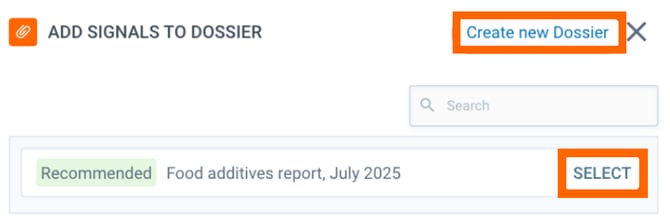
Add Signals to the new dossier
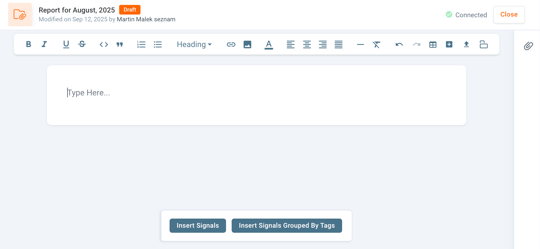
At the bottom middle of the page, there are two buttons for inserting the Signal. Clicking Insert Signals, you add the Signals to the report.
The result can look like this:
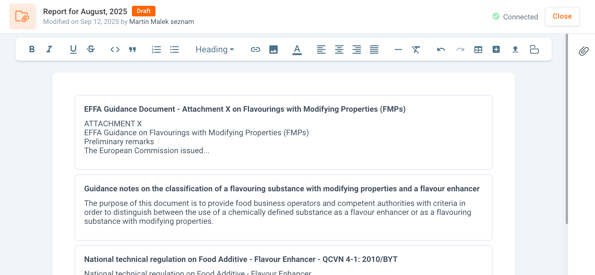
You can also group the Signals by clicking Insert grouped by Tags. Then the system will group the Signals by the Tags (if these are used on the Signals).
The result can look similar to this:
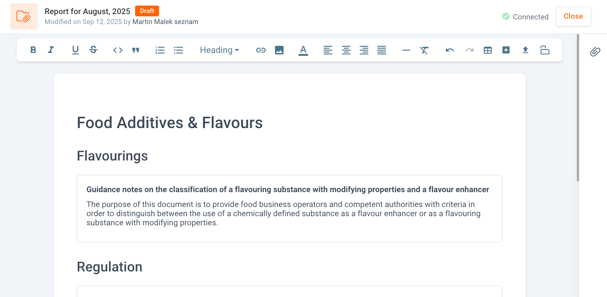
The document is structured in a way that Insight's name is used as a main heading, followed by headings consisting of the Tags. After each Tag heading, there is a list of Signals that contains the Tag.
All Signals without a Tag will be placed at the end of the document under the heading Without group.
TIP: In case you are using custom properties for Signals, you will be able to group your Signals by these properties instead of the Tags.
Add Signals to the existing dossier
Once the existing dossier is selected, you are navigated to its edit mode. The content of the dossier is loaded and you will be able to update the content by clicking one of the buttons at the bottom of the page, Update report with Signals or Update report with Signals grouped by Tags.
TIP: In case you are using custom properties for Signals, you will be able to group your Signals by these properties instead of the Tags.
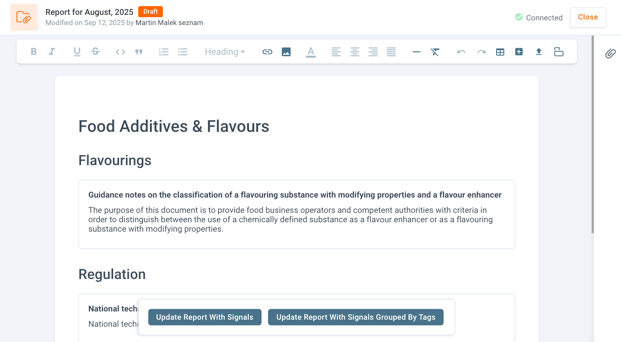
When you click Update report with Signals, the Signals will be added at the bottom of the document.
When you click Update report with Signals grouped by Tags, the system will automatically go through each Tags section and add Signals to them. In case the Tag heading is not preset in the dossier, it will be created and Signals will be placed below it.
All Signals without a Tag will be placed at the end of the document under the heading Without group.
Discover our new onboarding platform full of video guides - SGS Academy!