
Collaboration in Insights goes beyond simple chat. You can assign specific comments to colleagues as formal tasks and complete with deadlines.
In order to check all comments and tasks related to a specific Insight, open an Insight detail.
On the right side of the screen, there is a docked panel. Click the arrow button on the panel to expand it and click the “Comments & Tasks” icon (chat bubble).
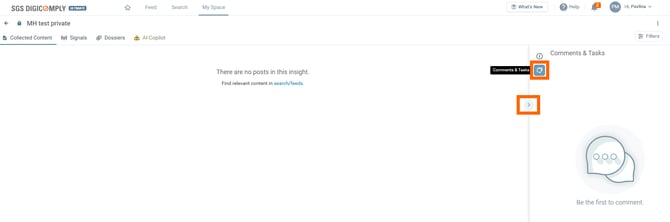
Creating a comment
Type your comment in the input field at the bottom of the comment section. You can use “@” symbol to mention a specific colleague from your organization.
Once you are done with your comment, you can click “Post” button, your comment will be saved and appear in the list of comments.
Creating a task
To create a task, you can start the same way as described in Creating a comment section.
Then find assignees for the task by using “@” to mention somebody or click the symbol for adding assignees.
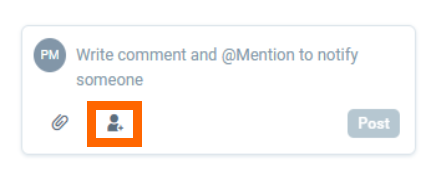
All mentioned users are listed below your comment. You can extend the list of assignees by clicking the “+” symbol after the last assignee and searching for a specific person. Select all users you would like to assign the task to by checking the checkbox next to their names.
Optionally, you can set a deadline for the task.
The final form could look like this:
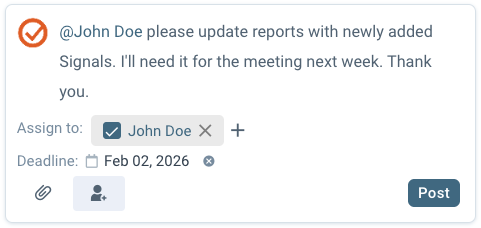
To publish your comment/task, press the “Post” button.
Notifications
All mentioned users and assignees will receive in-app notifications with a link to the insight. The users with enabled email notifications will also receive an email about the mention or assigned task.