![SGS-AFL-DigiComply Lead Visual-cmyk-tagline2022.jpg]](https://support.digicomply.com/hs-fs/hubfs/SGS-AFL-DigiComply%20Lead%20Visual-cmyk-tagline2022.jpg?height=40&name=SGS-AFL-DigiComply%20Lead%20Visual-cmyk-tagline2022.jpg)
Assignment A: Perform a search for 'xylitol' that includes it as both an exact match keyword and also as a Substance. Group them together so both are included in the search. Filter to see post types: 'scientific' and filter further to include an additional keyword 'cancer'.
- Answer:
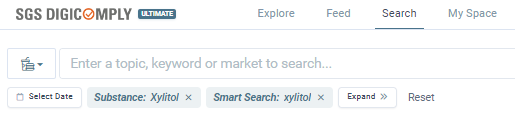
In this example, start by selecting the substance and then add “scientific” as a filter to view only scientific-related publications.
As you review the different articles that appear, you might realize that your main interest is in studies related to “cancer”, so you can refine your search further by adding this additional keyword.

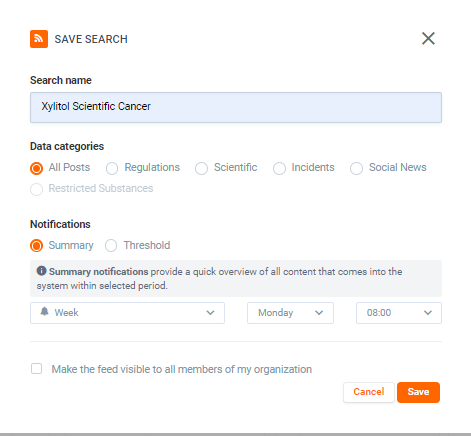
Therefore, you can add the term “cancer” into the search as shown above. Once your results are displayed, save this search as a feed and name it “Xylitol – Scientific.”
Finally, set your notification preference according to how often you want to receive updates (e.g., daily or weekly).
NOTE: There is an important difference between Product/Substance terms and Smart search terms. SGS Digicomply uses product and substance hierarchies (Ontology) to improve how related terms are connected during searches. For example, related products (also known as children or parents of the original term) may appear in your results even if the exact product name wasn’t mentioned. In contrast, Smart search looks specifically for the keyword as it appears in the post text.
To ensure you capture all relevant information, it’s recommended to include both the ontology-based terms and the smart search term together using the “Search by text” option.
Assignment B: Edit the above search to create the same feed but this time specifically focused on source: 'EFSA Publications' (Use the 'Save as New Feed' option as previously mentioned). Select Daily notification preference.
-
Answer:
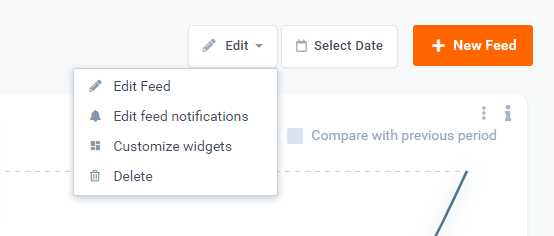
In this case, we want to replicate the previous feed. To do so, go to the ‘Edit Feed’ option for the feed you just created. This will allow you to adjust the filters and settings while keeping the structure of the original feed.
Once back in the search, remove “Scientific” from the search bar and add “EFSA Publications” as the source. This will focus your feed specifically on publications from EFSA.

At the bottom, make sure to click the icon to the right of “Update Feed”. This allows you to create a new feed while keeping the previously created one unchanged.
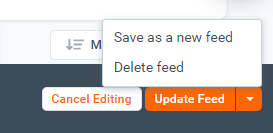
Name the new feed as “Xylitol – EFSA”, set the notification preference to Daily, and then Save your changes.
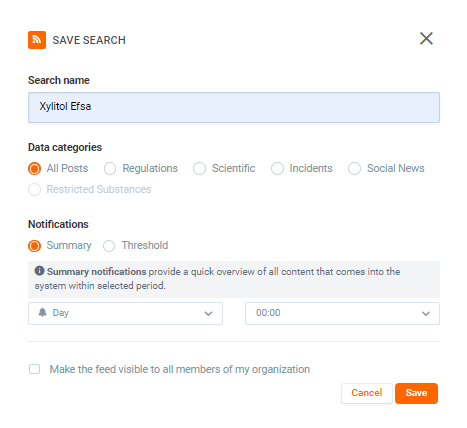
You now have a more targeted search focused specifically on EFSA publications, allowing you to monitor any future developments related to this substance.
While EFSA publications would also appear in your previous “Scientific” feed, this new setup ensures you will not miss any updates coming directly from this key agency.
Assignment C: Edit the previous search to create a final feed that monitors Regulations across all global markets (using the Save as New Feed option).
Be sure to remove the keyword “cancer”, as it is no longer needed. Next, create a folder named “Sweetener Watch” and organize the three saved searches within it.
- Answer:
Follow the same steps outlined in the previous assignment to repurpose a feed by editing an existing one.
The updated search should be configured as follows:

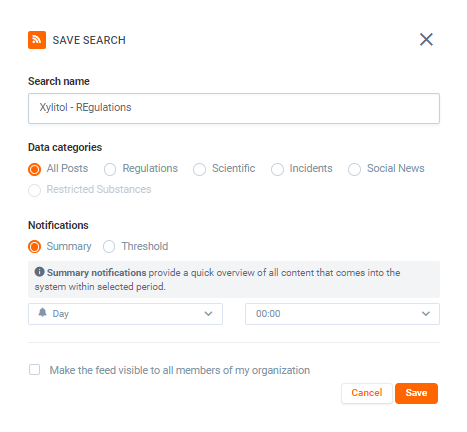
Once the new feed has been saved, create a folder named “Sweetener Watch” and group all related feeds together within it.
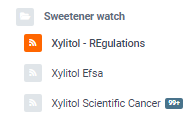
You now have a set of feeds that monitor emerging risks for the substance at the scientific level.
In addition, a global regulatory scan is in place to keep you informed of any changes in regulations across specific markets related to this substance.